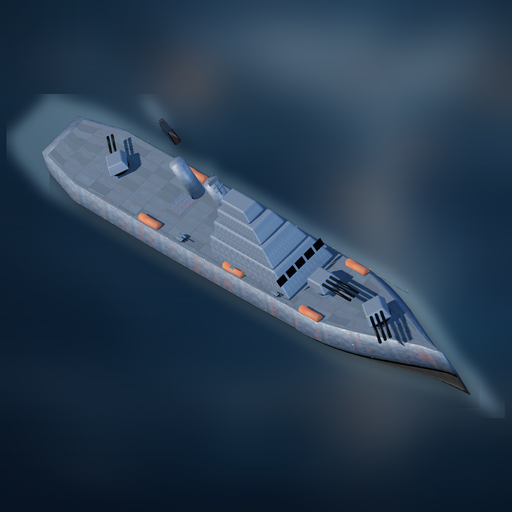
Play battleship on your phone — Android and iPhone browsers
Ballistic Duel runs in a browser on a phone as well as a computer. Open the English game page, launch the game and use touch controls to place your fleet and aim. A separate browser window is a useful starting point if an in-app browser behaves unexpectedly.
Play Sea Battle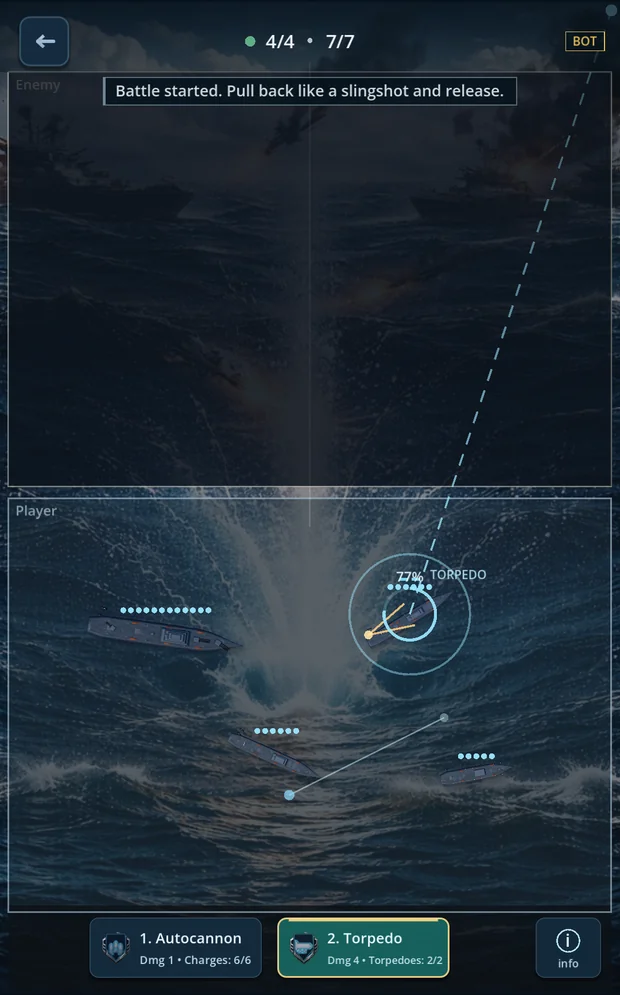
Start in three steps
- Open the site in your phone browser and let the game finish loading.
- Complete training: select a ship and weapon, drag back and release.
- Friend duels need two devices. Link your email before switching phones or clearing browser data.
Open the game in a current browser
Visit seabattle.online/en/ on your phone and press Play. The browser downloads the game before the first screen appears, so allow time for the initial load. A stable connection is useful, especially on the first visit.
If you followed a link inside a messenger and the game stays blank, open the same address in your normal browser. You do not need to install an app to use this browser version.
Use touch controls deliberately
Place ships before starting the battle and check that the selected fleet fits. During a turn, select the ship and weapon you intend to use. Drag back to set up the shot, then release. Start with modest adjustments while learning how drag direction and strength affect the result.
Keep your finger clear of unrelated interface buttons while aiming. If the view or the weapon choice is unclear, pause before releasing rather than treating every gesture as a shot.
Play a friend on another device
A phone can join a private duel against another phone or a computer. Both players open the game, find each other by callsign, accept friendship and use a battle invitation.
Each player needs a separate device. This version does not offer a one-phone pass-and-play mode. Keep the game open while waiting for your friend to accept the invitation.
Keep access to your account
A server can store progress while your browser keeps the information needed to access the account. Check the profile's email linking option before switching phones or clearing browser storage.
Do not erase site data if the current browser holds your only guest account access. A fresh guest login can appear to have lost your progress when it is actually a different account. First make sure you have an available way to sign back in.
Handle a blank screen or interrupted connection
Check whether the connection works, then reload once and give the game time to start. Try a current standalone browser if an embedded browser is unreliable. Switching away from the game can interrupt a live match, so return to it promptly.
If the same problem continues, note the phone model, operating system, browser version and the step where it occurs. These details are more useful for support than repeatedly clearing all browser data.
Quick answers
Does it work on Android and iPhone?
The browser version is intended for phones as well as computers. Use a current browser and an internet connection.
Is an app installation required?
No. You can launch the game from the website.
Can I play my friend on a PC?
Yes. Use the friends list and a private battle invitation on two separate devices.